You’ll need these connection settings when you wish to connect to or disconnect from GoCardless, either in the sandbox mode or the live mode.
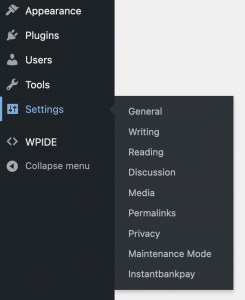
The connection settings are accessed from the WordPress dashboard settings menu. Look for Instant Bank Pay and select it.
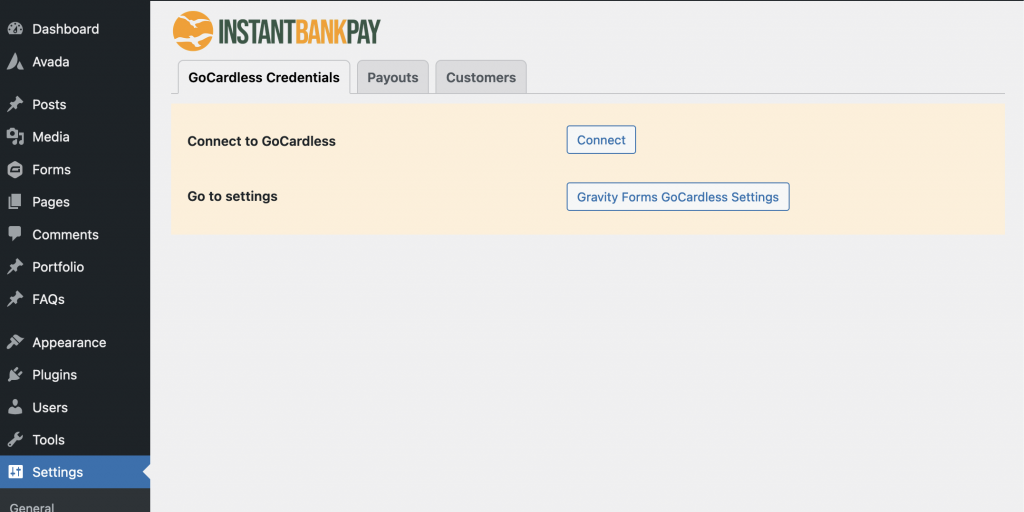
GoCardless Credentials Tab
Shown here are the settings in sandbox mode (indicated by the sand-coloured background). The procedure for connecting in Live mode is similar; there is an extra step to generate and store security keys. Simply disable sandbox mode to show the live settings. More details are under Going Live.
When in sandbox mode, you can connect your site to any GoCardless sandbox account that you have access to. In live mode, you must be logged in to your account on wpdirectdebit.com that shares the same email address as the GoCardless account you wish to connect. This account will the the one that was created for you when you subscribed.
Connect to GoCardless
While Instant Bank Pay is in sandbox mode, it will automatically connect to your GoCardless sandbox account; likewise if you have live mode selected then it will connect your site to your live GoCardless account.
Important: In live mode, you must be logged in to your account on wpdirectdebit.com that shares the same email address as the GoCardless account you wish to connect. This account will the the one that was created for you when you subscribed.
Clicking the Connect button will take you over to GoCardless, where you will be prompted to log in to the GoCardless account that you wish to connect to your site. The email address is pre-populated with the account you are logged in with, but if your GoCardless account is associated with a different email address, you can change it here.
(Maybe you haven’t gotten round to setting up a sandbox account yet on GoCardless? No problem. Click Sign Up and do it now.)
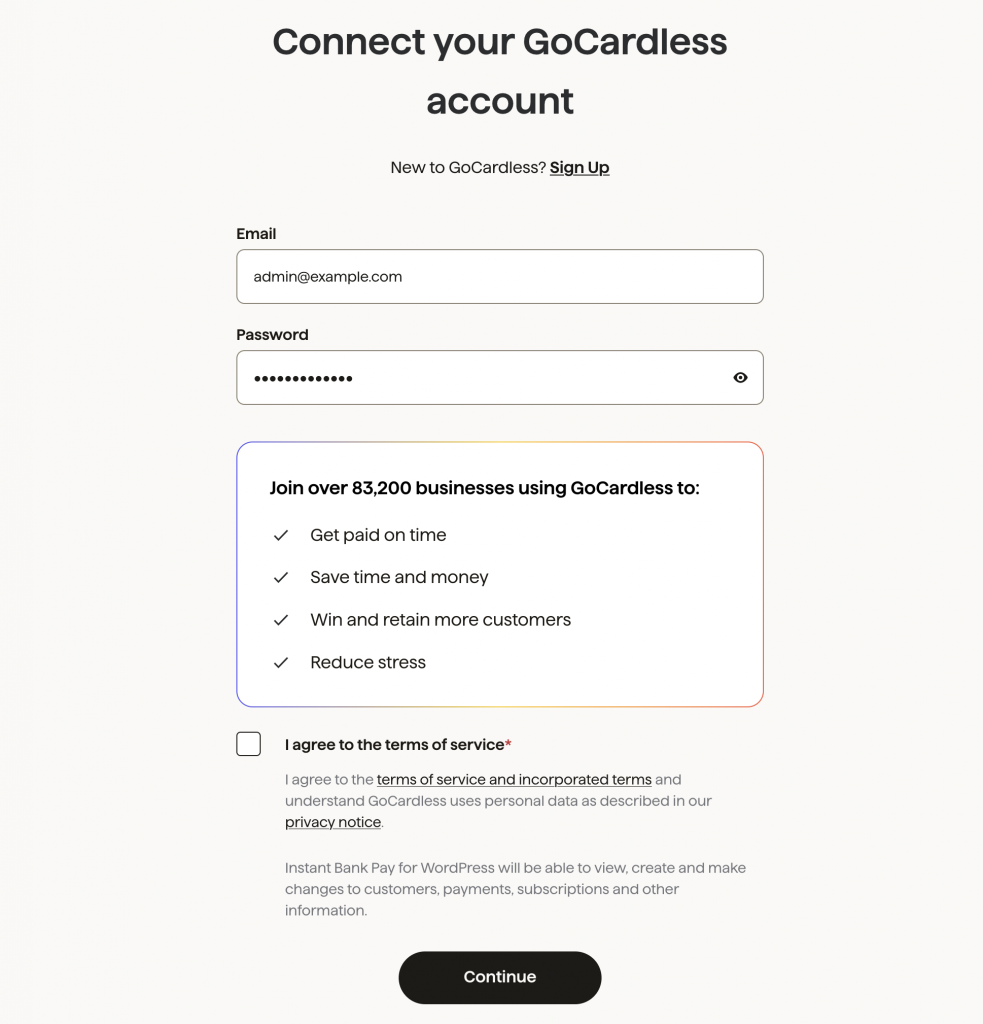
Click the Connect account button and after a short while you will be redirected to a confirmation page on wpdirectdebit.com.
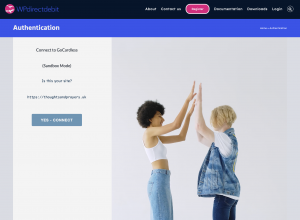
If you see the URL of your site displayed, click YES – CONNECT to confirm. (Should you see a different URL, do not connect – but do let us know! That should not happen).
This will take you back to where you started – the global settings page on your own website, now with the Connection response tab selected.
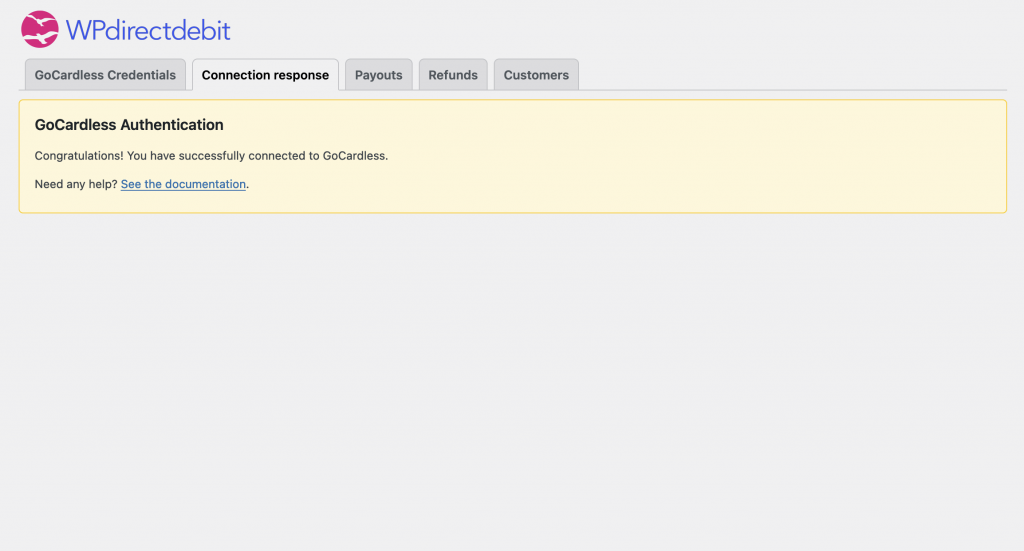
Payouts and Customers tabs
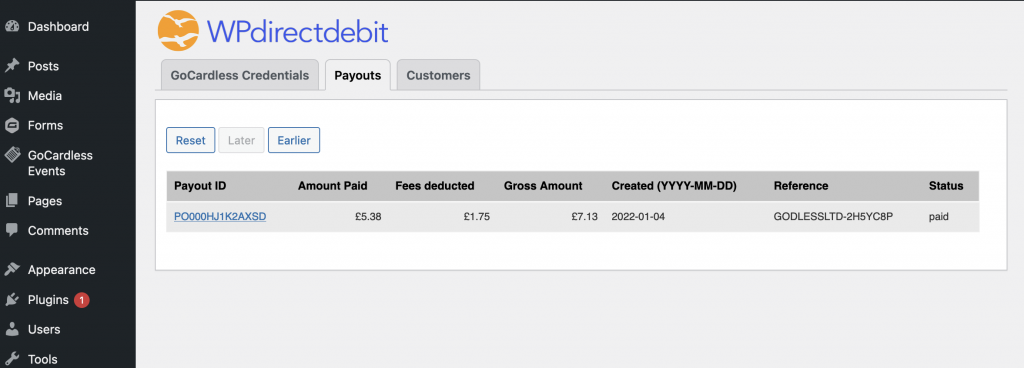
For a list of customers or payouts, click on either the Customers tab or the Payouts tab. For further information on any customer or payout, click the ID in the first column; this links straight through to the corresponding record in your GoCardless dashboard.
You can scroll through the payouts or customers using the Earlier and Later buttons.
If you see a small flag in the tab, this means there are new customers or payouts since you last viewed them.
Initially, of course, the list will be empty.